GLAZE field guide · Documentation reviewed October 21, 2026
How to create a CRT effect in After Effects
Build a screen-inspired treatment with native effects, or shape a documented GLAZE workflow.
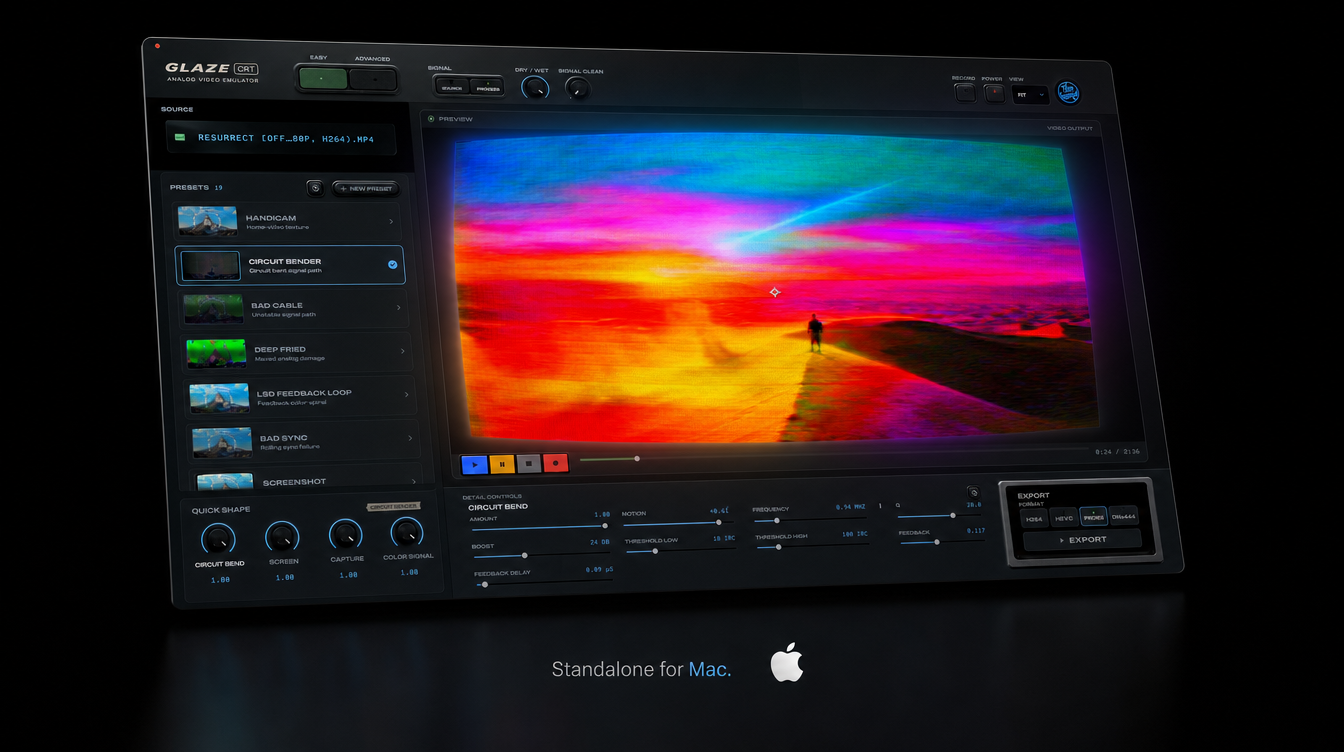
Choose the image you want
A CRT-inspired treatment starts with a visual decision: is the audience looking at a screen, a damaged recording, or a graphic that borrows from both? A glowing image with a fine repeating pattern suggests a display. Horizontal disturbances and unstable color suggest a troubled signal. You can combine those ideas, but deciding what each part contributes makes the result easier to control. Start with a short shot containing movement, highlights, shadows and some fine detail. Keep an untouched version beside it so you can judge the treatment against the source.
This guide combines a proposed native-effects exercise with the published GLAZE Mac workflow. It is not a benchmark or a claim that the suggested native setup physically reproduces a particular television. Host versions, color settings and viewing scale affect the result. Work on a duplicate composition, keep your source unchanged, and make a short export before applying the treatment throughout an edit.
Method A: a native-effects starting point
First, set the composition to the delivery framing you intend to use. Put the clean clip in that composition and keep a duplicate available for comparison. Build the repeating screen texture as a separate graphic layer so you can adjust its strength without changing the underlying shot. Adobe documents Venetian Blinds as a transition that divides a layer into strips, with width and direction controls. It supports 8- and 16-bpc processing. Using those strips as a faint overlay is a creative screen-texture technique, not a model of physical CRT scanning.
Apply Venetian Blinds to a solid, adjust its transition amount until strips are visible, and change direction and width while looking at the composition at full viewing scale. Reduce the layer opacity until faces, lettering and important details remain readable. There is no universal stripe width: a useful pattern depends on image dimensions, framing and intended display size. If the pattern dominates the picture, reduce its contrast before adding more effects.
Next, consider the bright parts of the image. A restrained glow treatment can help establish a luminous screen impression, but keep a clean comparison visible while adjusting it. Avoid solving every shot with more brightness. If highlights turn into large flat areas, back off the treatment and check whether the original detail still serves the edit. Add distortion or noise only when it has a purpose in the scene. A stable screen does not need constant damage, and an emotional close-up may benefit from less texture than a title sequence.
Method B: shape the look with GLAZE
For the plugin workflow, use the GLAZE After Effects manual that matches your installed package. The current manual describes selecting a factory look under GLOBAL > Preset, previewing a few seconds, and changing one setting at a time with the selected layer’s native Effect Controls visible. Begin with one applied instance so you can understand the result without accidentally stacking treatments.
The control reference describes preset-led Quick Shape controls and expandable detail groups. Use the broad controls to establish the direction, then open a relevant group when something specific needs adjustment. For example, decide whether the problem is the screen texture, the color signal or the amount of damage before moving several unrelated controls. The manual distinguishes Beam Convergence from RGB Split; do not assume every colored edge comes from the same process or control.
Save a variation before loading another factory preset, because recalling a preset replaces its authored settings. The Adobe panel’s SAVE workflow stores the selected effect’s host values. A saved look is not your source footage or a complete editor project, and Standalone presets should not be assumed to appear automatically in another host. Keep the project file and the media together in your normal project archive.
Check motion, scale and export
Play a representative section instead of judging only one paused frame. Look at moving edges, camera motion and transitions between bright and dark areas. Check whether the texture supports the shot or makes it harder to read. Then compare the image at the size the audience will actually see. A pattern that appears attractive while zoomed in can become distracting when the finished video is reduced for a phone.
If the image will be resized later, examine that final size too. Fine repeating patterns deserve special attention when the delivery frame changes. Keep the effect order and scaling decisions recorded in the project rather than relying on a screenshot of the viewer. Do not confuse GLAZE’s SD, HI and FULL processing controls with the host’s export dimensions. The current control reference treats processing quality, viewer zoom and host preview resolution as separate settings.
Render a short section through After Effects and open the exported file independently. Check framing, motion, color, duration and audio. The GLAZE manual suggests a ProRes editing master as a useful first check when that option is available in the host output module. Choose the final codec and frame dimensions in the host. This guide does not promise a particular codec, alpha channel or performance level for every platform and version.
Common questions
Do I need a plugin? The native exercise above is a way to build a stylized treatment with effects already available in After Effects. GLAZE provides a documented set of related controls and preset workflows. Choosing between them is a workflow decision, not proof that one image is inherently more authentic.
Should every shot have visible scanlines? No. Choose their strength for the image and the viewing size. A consistent visual language can use subtle texture in one shot and a stronger treatment in another.
Can I copy the same numerical settings to every clip? Use them as a starting point, then inspect the result. Exposure, framing, fine detail and movement differ between shots. Preserve a clean comparison and avoid treating a preset name as a guarantee of the final appearance.
Where are the exact installation instructions? Use the current downloads page and the After Effects manual. Check the requirements for your operating system and host before purchasing or installing; this article does not establish an otherwise unverified host-version compatibility claim.